

Optimizing a 3D model for the web means balancing useful detail with download time, memory use, and rendering cost. There is no single triangle count that makes every model fast: textures, materials, animation, screen size, and the viewer's device all matter.
Start with measurements and a visual target. A small product thumbnail, an interactive product review, and a walkable environment need different levels of detail.
Measure before changing the model
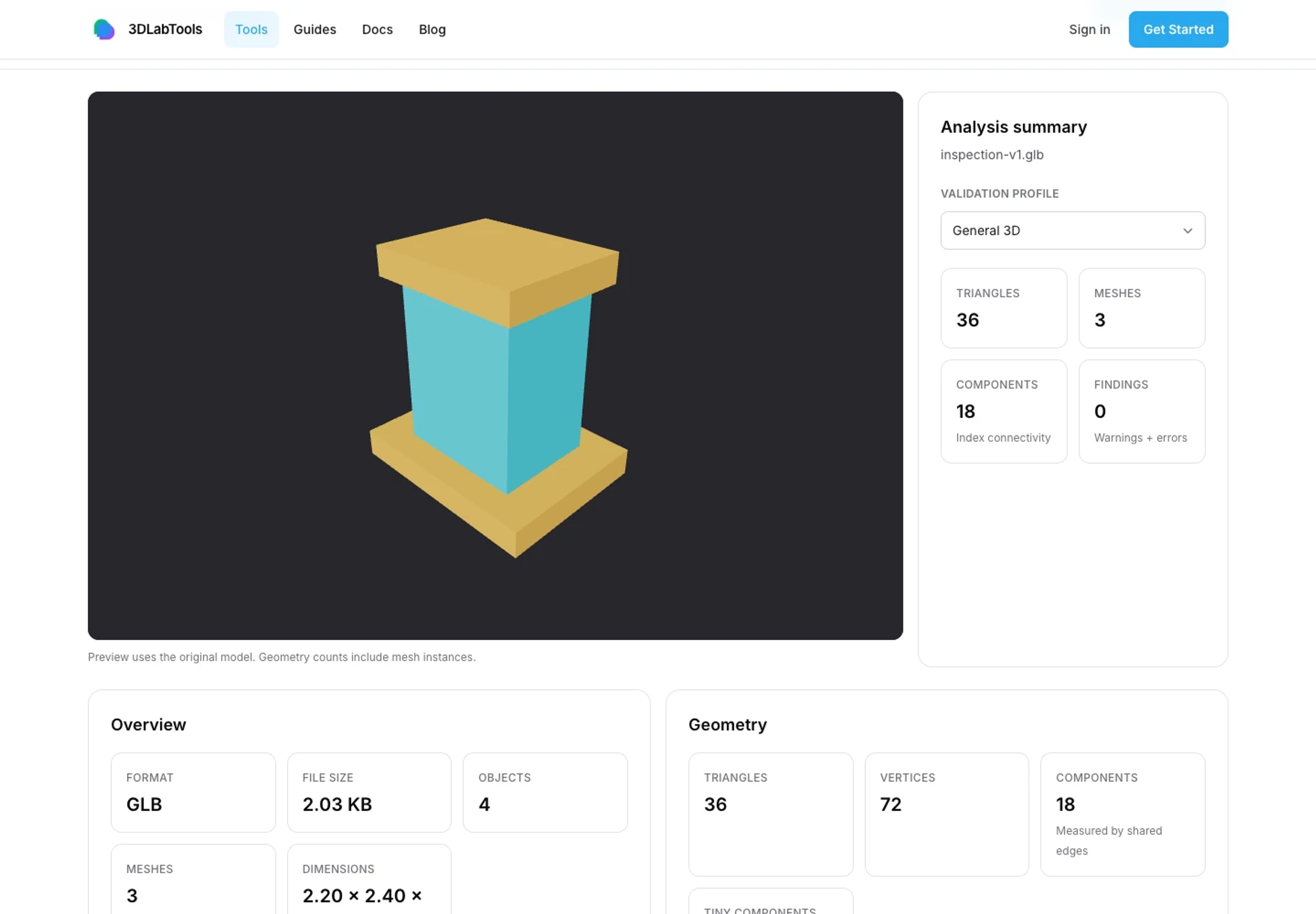
Use the 3D Model Analyzer to inspect geometry counts, material and texture information, UV channels, topology indicators, and animation or rig presence. The current Analyzer accepts GLB and FBX up to 50 MB; this is a separate tool limit from the Dashboard's 100 MB saved-model allowance.
Treat draw-call and texture-memory figures as estimates. Topology findings can suggest areas to inspect, but they do not prove that an asset is broken or ready for every destination.
Write down a baseline, then change one source asset property at a time. The Analyzer guide explains how to interpret the report.
Spend triangles where they affect the result
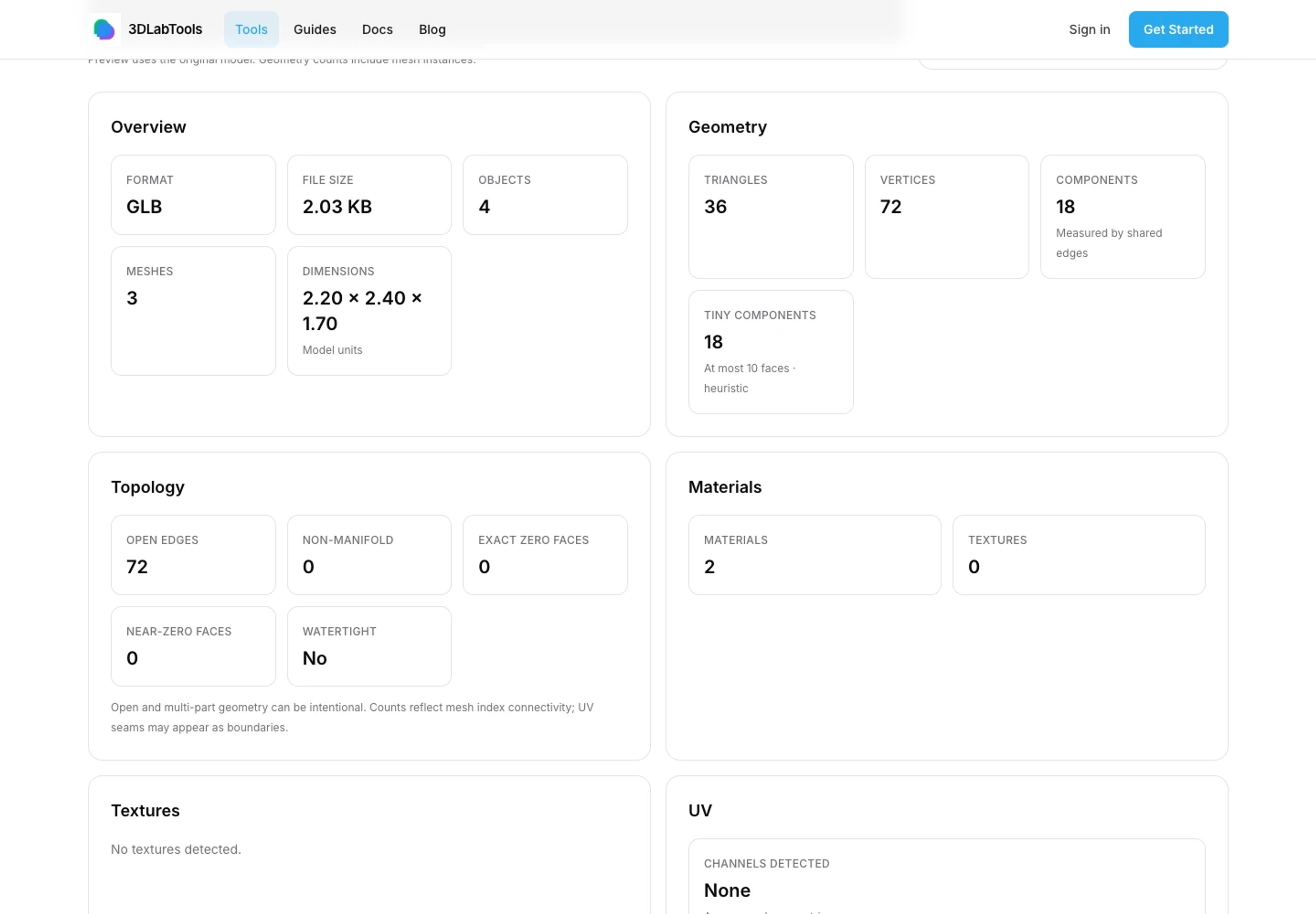
Triangles contribute to geometry cost, but visible benefit depends on distance and silhouette. A close-up curved handle needs more detail than an unseen internal bolt. For a building review, small decorative parts may cost more than they contribute to the camera views you actually use.
Remove unnecessary geometry or reduce density in your authoring tool, then inspect the exported result from the intended viewing distances. Check thin edges, silhouettes, UV seams, and animation before accepting the change.
The navigation collision ceiling of up to 1,000,000 triangles is a safety ceiling, not a recommended budget for a web model. Constrained devices can use lower adaptive budgets, and a scene below the ceiling can still render poorly.
Texture resolution and material count matter
A compressed file size does not describe all runtime texture memory. Large images can consume substantial memory once decoded and uploaded to the GPU. The Analyzer's texture dimensions and memory estimates can help identify candidates for resizing in your authoring workflow.
Choose texture resolution for the detail visible on screen. Keep enough resolution for labels or surface patterns that reviewers need, while reducing oversized maps that provide no useful difference at the intended camera distance.
Many mesh groups and material assignments can increase rendering work. Consider consolidating assets or materials where it preserves the intended appearance, then re-export and compare. 3DLabTools does not automatically merge every draw call or redesign your texture layout.
File size and animation are separate costs
Reducing file size can improve transfer time, but a small file can still be expensive to render. Check the model after it loads, including when animations are playing.
Remove unused clips or assets in the source workflow where appropriate. If a rig or morph animation is essential, inspect its deformation after any geometry change rather than assuming that a reduction preserved it.
The Dashboard stores canonical GLB, accepts GLB/glTF/FBX input, and limits each saved model to 100 MB. Converting the input can change its size, so check the prepared GLB as well.
Use adaptive presentation without confusing it with asset optimization
Viewer Scene Settings offers Auto, Performance, Balanced, and High quality profiles. Available background, atmosphere, weather, lighting, and shadow controls depend on scene capabilities and safeguards.
Try Performance when a device struggles, or remove unnecessary effects while inspecting a model. These changes affect rendering and presentation; they do not simplify source geometry, invent detail, or upscale textures with AI.
Evaluate Experimental Auto Retopology cautiously
Auto Retopology is Experimental. Use a copy of the asset, compare any result with the original, and inspect topology, silhouettes, UV behavior, and suitability for the next stage.
It is not a promise of production-ready native retopology or automatic optimization for every model. Keep the original source and use your authoring tools when an asset needs a controlled topology or animation-specific workflow.
Recheck on the devices that matter
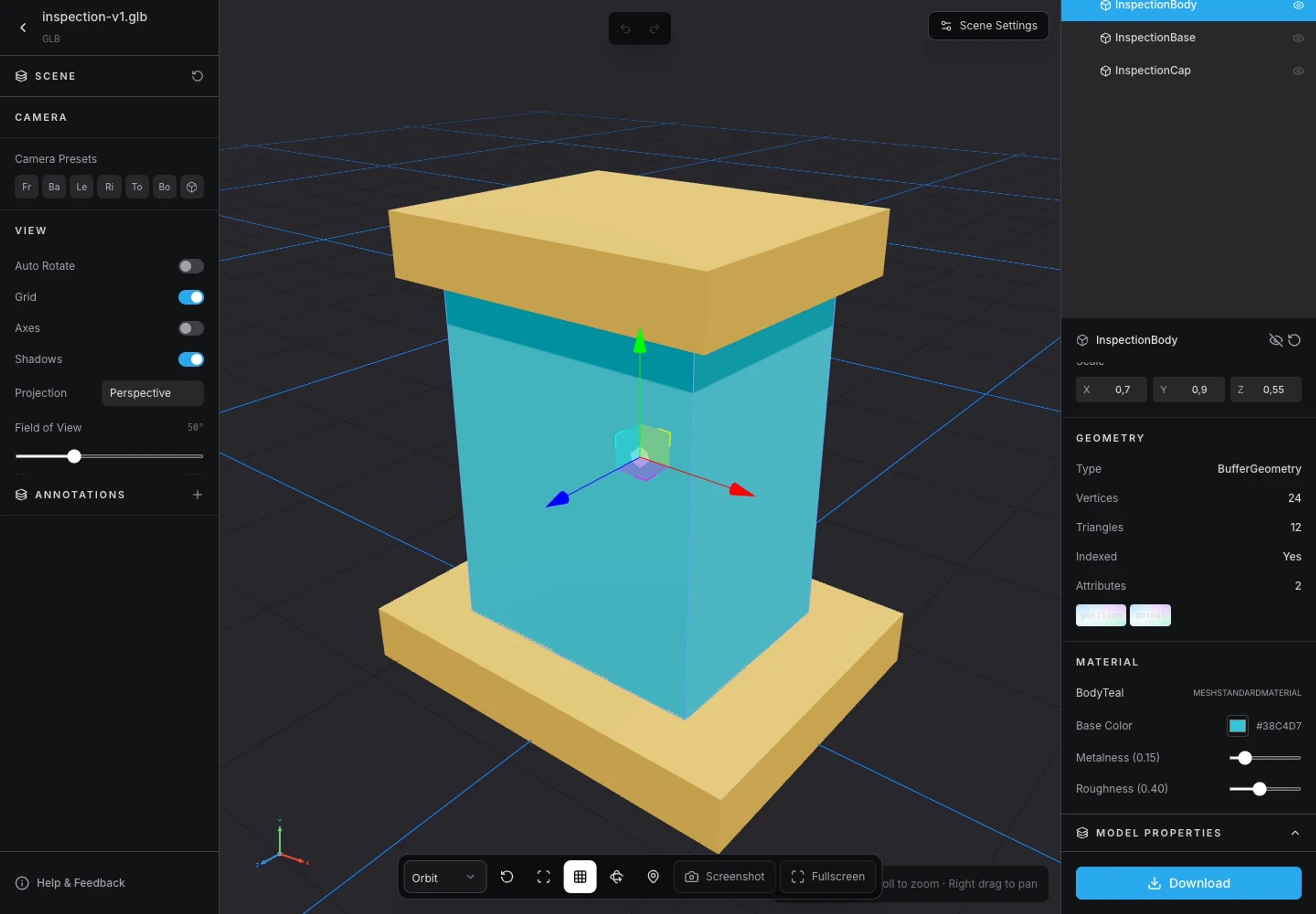
Load the revised export in the Viewer, inspect the same camera views, and compare Analyzer measurements. Test the actual interactive or embedded model on the browser and device class you intend to support.
When the visual result and performance are acceptable for your use case, follow the sharing guide to review the model in context.
Explore product documentation or open the 3D Viewer.