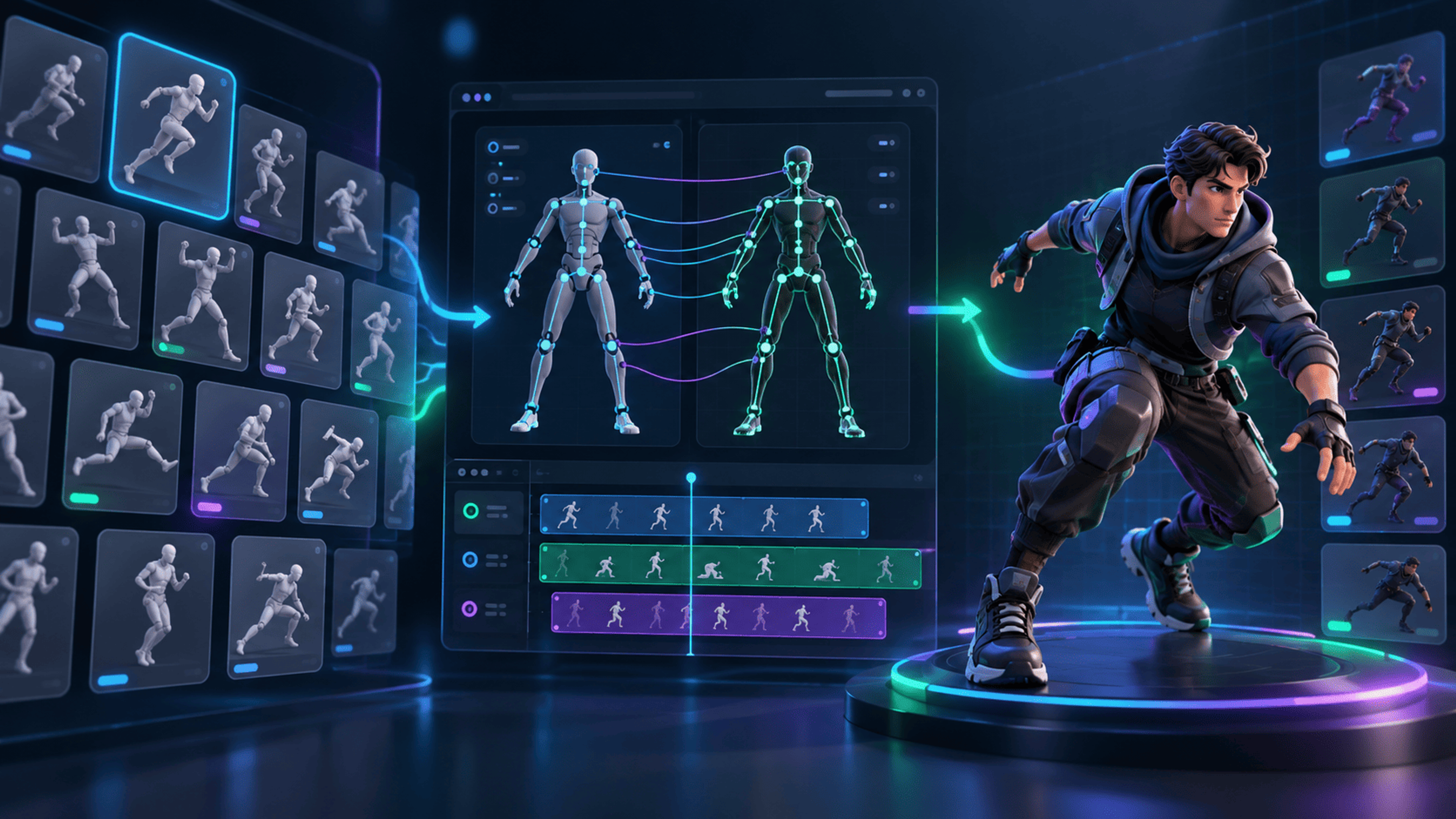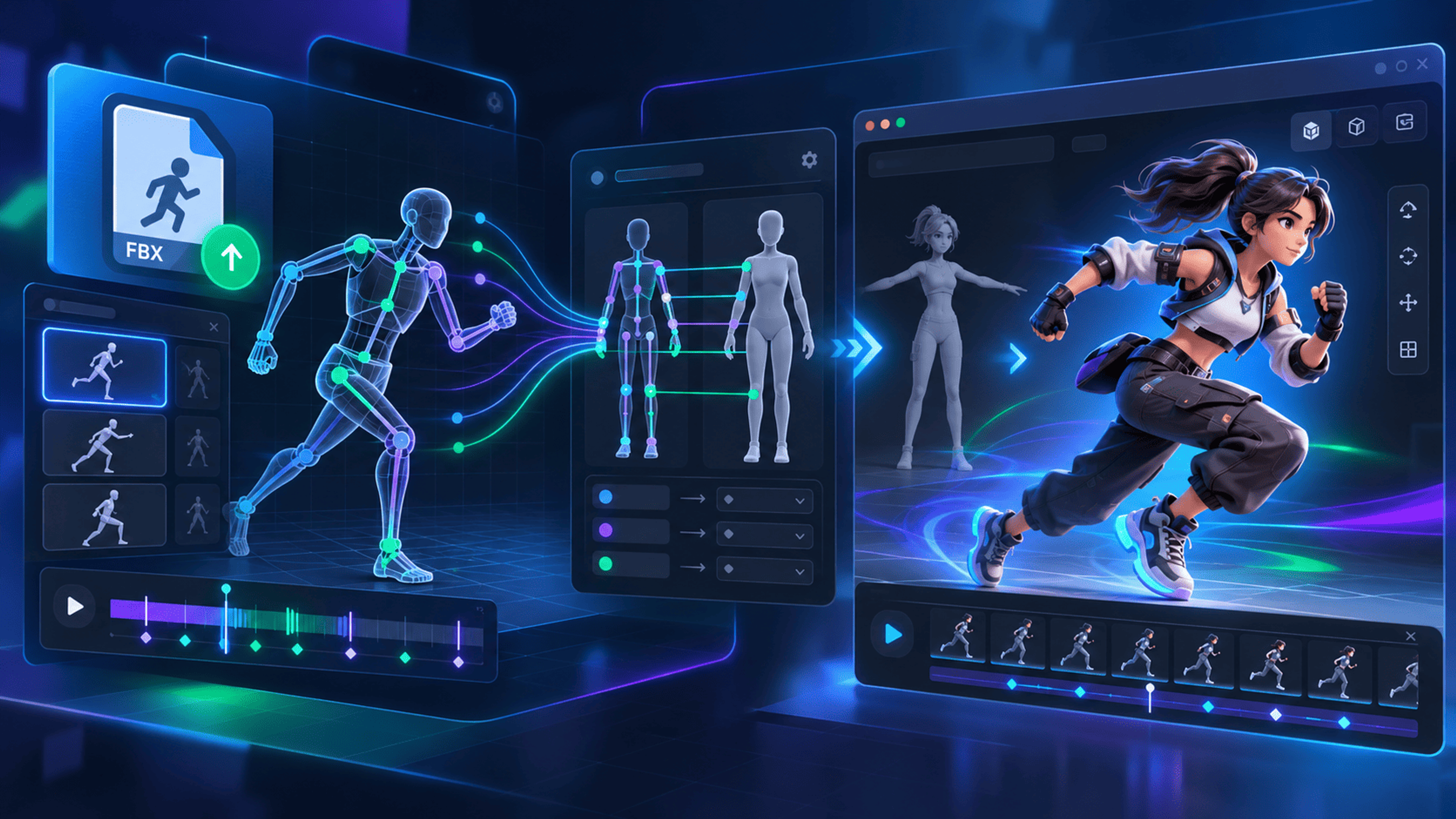
An FBX motion can drive a GLB character only when the source skeleton, target rig and animation tracks can be mapped usefully. In the 3DLabTools Animation Tool, start with a published animation pack or an animation-source Resource, import your character, generate a retarget, review it, then export the applied result.
This guide uses an FBX motion already available through those supported sources. The Library's local Upload control imports an exported retargeted animation GLB; it is not an arbitrary FBX animation uploader. Keep your editable character and motion originals, and confirm the license permits the intended use.
Before you start
Prepare a GLB character with a usable skeleton, skin weights and bind data. An unrigged model needs a separate rigging and deformation-review workflow first. A visible bone hierarchy alone does not establish valid skinning.
For the simplest start, choose an available published pack containing a short idle or walk. If using Resources, open an animation-only FBX Resource with Open in Animation Tool first, then import the destination character in that workspace. A Resource that contains a mesh is treated as a character; its embedded clips can be reviewed, but it is not automatically an animation-only source. Merely renaming a file does not change its structure.
1. Import the target character
Use Import Character, or Upload Character in the workflow toolbar, and choose your GLB. The file input accepts GLB and FBX characters; this guide uses GLB. Importing a new character replaces character-dependent results, so keep a copy of any completed export before changing the target.
Inspect the rig status and skeleton in the workspace. A recognized, usable imported rig can supply the target directly; you do not need to regenerate a rig simply because retargeting is the next step. If the character lacks a usable rig, stop and resolve that first.
Checkpoint: The destination mesh and its usable skin binding are available. Additional motion files cannot repair missing skinning.
2. Select one source motion
Choose a published pack and select a short clip in its animation cards. Selection determines which animations are processed; clicking a clip to preview it and checking it for processing are separate actions. For an animation-source Resource, select the intended clip from the Resource clip control when several exist.
Inspect the source skeleton and playback. A filename such as
Walk.fbxdoes not establish that motion was exported with the right tracks or frame range. If the source has no usable clip, return to its authoring application or choose another published motion.Checkpoint: The intended source motion plays or has inspectable clip evidence, and the intended clip is selected.
3. Inspect compatibility and mapping
Review the available rig and mapping findings. Required anatomical roles must correspond sensibly even when bone names or counts differ. Check hips/root, left and right legs, spine, shoulders and hands.
Do not assume every inferred mapping can be repaired through an editor in this interface. If essential correspondence is missing or wrong, choose a compatible source/target or correct the rig in your authoring application. Direct application to an incompatible skeleton is not a substitute for retargeting.
4. Generate and review the retarget
For the selected pack motion, use Generate Retarget. Inspect the destination mesh through the full clip, including foot contacts, widest limb extensions and ending pose. Check for crossed legs, shoulder distortion, unexpected translation and triangles stretching across the body.
The next action is Apply Selected. Ready results can apply; results requiring review open a confirmation dialog. Complete Confirm retarget review and Accept & Apply only after inspecting the actual result and understanding its remaining limitations. A FAIL result cannot be applied or included as an accepted export. Change the input or settings and regenerate instead of trying to override failure.
5. Export the applied result and verify it
Export only the selected, applied, accepted animations. The character export is GLB, containing the character mesh, materials, skin, skeleton and included animations. It does not become an FBX export because its source motion came from FBX. A retargeted-clip-only export is a different asset and should not be confused with an animated character.
Re-import the downloaded character into the 3D Viewer and your destination editor or engine. Check every included clip by name and confirm the mesh deforms. Keep the source/target filenames and included clip list with the export.
Illustrative diagnostic walkthrough
Suppose the source skeleton visibly walks but the target mesh stays still. First inspect whether the target has valid skin binding and whether the generated motion was actually applied. Regenerating the same mapping cannot bind an unskinned mesh. If a review dialog is still pending, a generated preview is also not yet an applied result. These are diagnostic alternatives, not a measured success-rate claim.
Common problems
- No source motion: inspect clip tracks and frame range in the source export.
- Twisted limbs: inspect mapping, rest pose and joint-axis assumptions.
- Sliding feet or drift: compare in-place versus root-motion behavior; no automatic contact correction is promised.
- Missing sword or prop: motion transfer does not attach a separate model.
- Failed validation: repair the cause or choose a different combination; keep the failed candidate unaccepted.
Next step: Open Animation Tool with one supported motion and a known-good character. For container differences, read GLB vs glTF vs FBX.
Verification note: checked on October 20, 2026 against V1 source and a local diagnostic workflow using an original FBX motion and an original 65-joint procedural character. The reviewed, applied single-clip character GLB was downloaded and reopened in Viewer with its mesh, materials, skin and animation. The private diagnostic catalog is not production pack inventory, and a rigid test body does not establish organic deformation quality or compatibility with your destination engine.
Explore product documentation or open the Animation Tool.