

A 3D model viewer loads a scene and lets you examine it from different angles without opening the original authoring project. A browser-based viewer makes that inspection available through a web page: useful when you need to check an export, review an asset, or explain a design to someone who does not use your modeling software.
The important question is what you need to verify. A preview can answer whether an asset looks correct and contains the expected objects; it cannot establish that every part of an authoring workflow survived export.
What a viewer helps you inspect
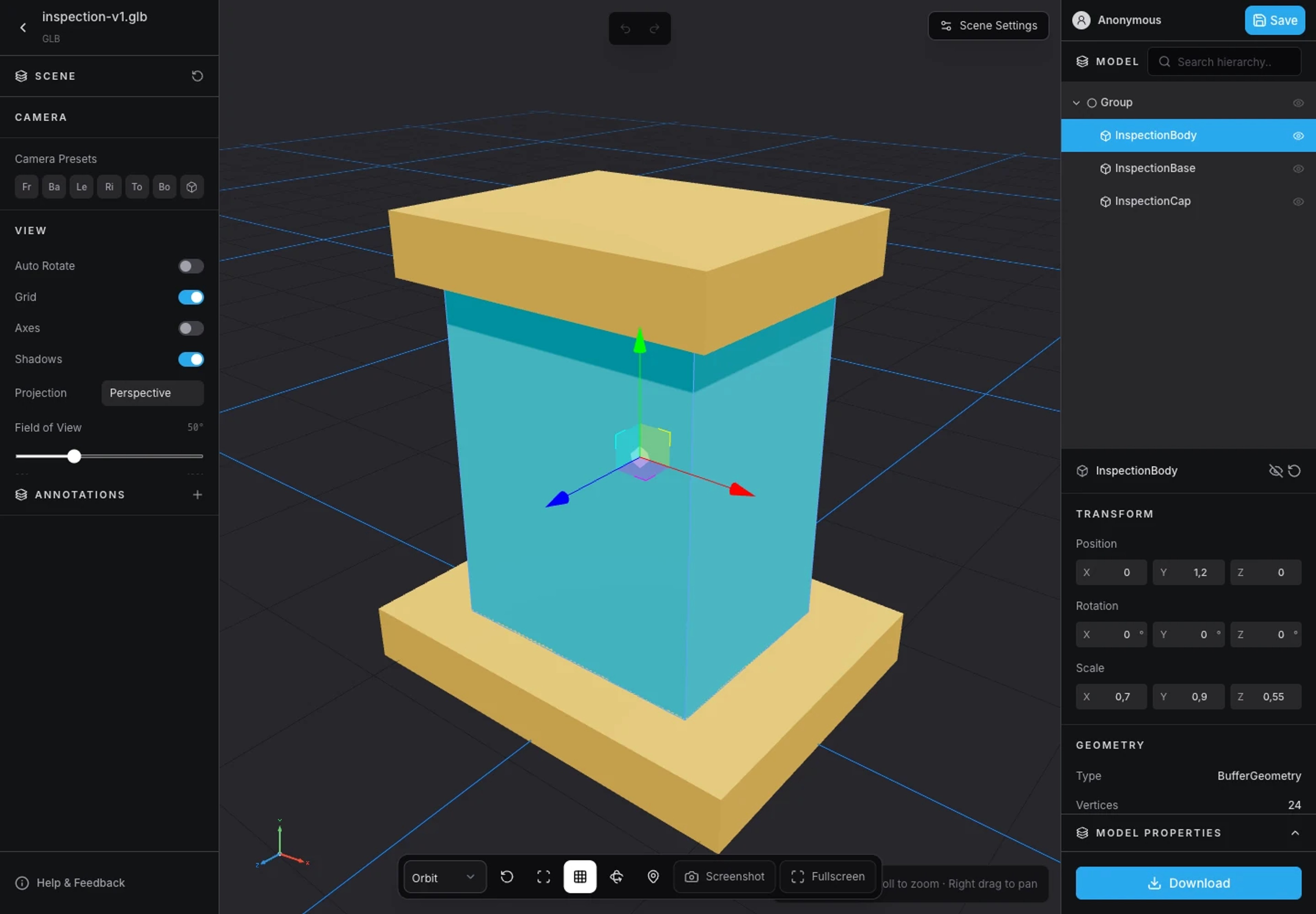
Start with camera controls. Orbit reveals the sides and back of an object, zoom helps inspect surface details, and Fit Model brings an asset back into frame. For a building, orbit around the exterior before trying to navigate inside it.
Scene inspection adds context to the picture. A hierarchy shows how objects are organized. Dimensions help catch unexpected scale, although their meaning depends on the model's units and export conventions. Materials and texture inspection help explain missing color, transparency, or an unexpectedly shiny surface.
If animation clips are present and supported by the importer, playback lets you review motion alongside the mesh. A static preview alone will not tell you whether a rig or animation exported correctly.
Useful browser workflows
Check an export before handing it over
Suppose a product asset looks correct in your authoring tool but appears untextured on a website. Load the exported file, inspect its materials and texture maps, and check that any glTF companion files were supplied. This separates an export or missing-resource problem from a problem in the destination application.
Give a reviewer a common reference
A hosted share link gives a reviewer a specific model to inspect without asking them to install an editor. Annotations can point to a latch, cable route, or area that needs attention. The reviewer still needs to load the model in their browser; a link does not eliminate the model download.
Check an environment from a pedestrian viewpoint
Orbit is useful for an overview. First Person and Third Person navigation provide another way to inspect roads, floors, sightlines, and accessible openings. Collision and grounding are practical inspection aids, not a simulation of a complete game or building-accessibility system.
A viewer and an editor serve different tasks
An authoring application is where you build geometry, create detailed UV layouts, rig characters, and manage a larger production pipeline. A viewer is useful for checking the result and communicating it.
3DLabTools has model inspection and editing controls, but the V1 Viewer is not a replacement for a full modeling application. Keep your editable source project. Use exported models as review assets, and make substantial geometry or export corrections in the tool that created them.
Where 3DLabTools fits
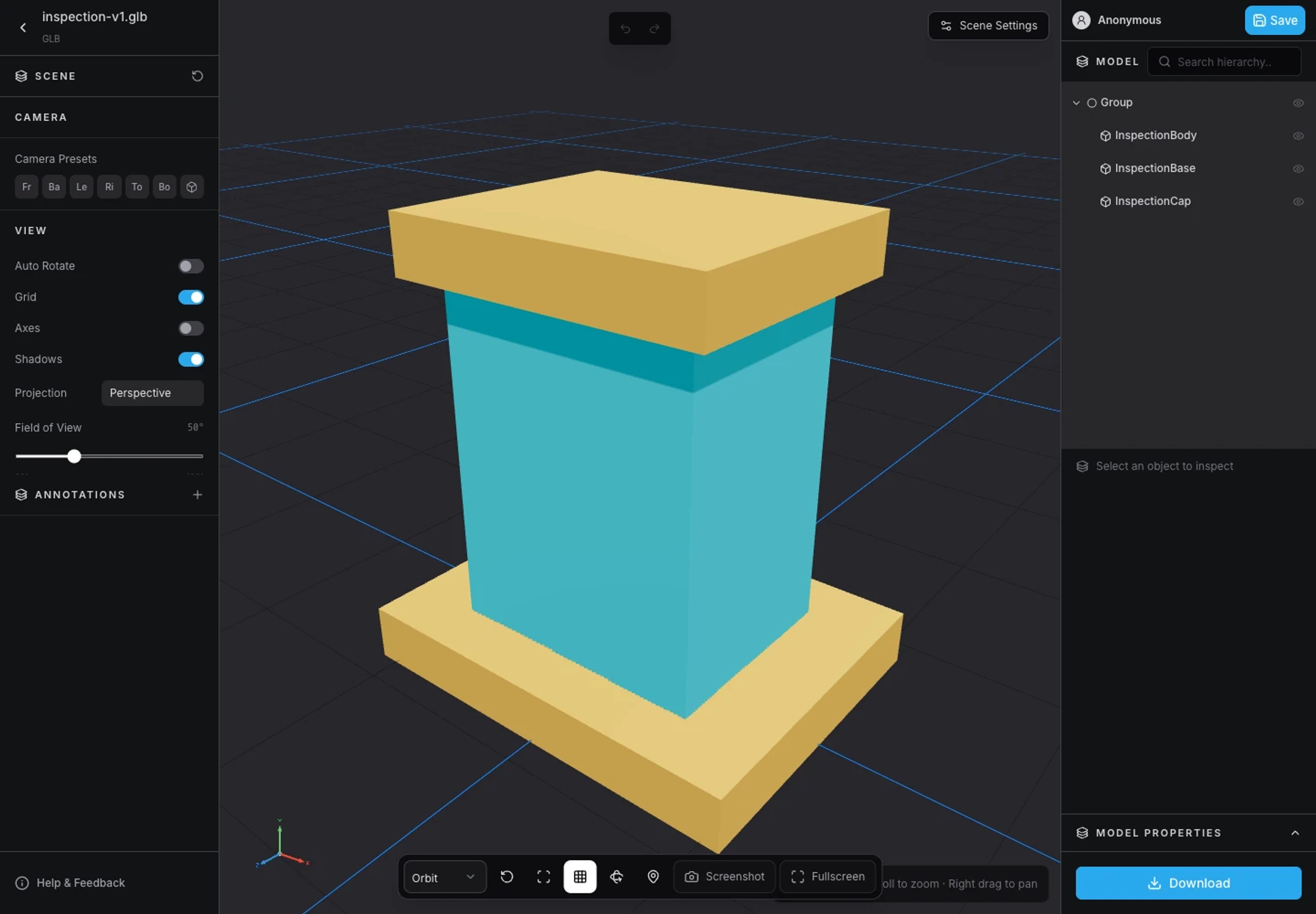
The 3D Viewer accepts GLB, glTF, and FBX. You can inspect hierarchy, dimensions, materials, textures, and available animations, then use camera and viewport controls to examine the scene.
Scene Settings provides model-aware presentation controls: background, atmosphere or weather where supported, lighting adjustments, and adaptive render quality. These controls change the presentation. They do not create missing texture detail or repair source geometry.
Saved models use canonical GLB storage. An account can save 8 models, with a maximum of 100 MB per saved model. Share View and iframe embeds provide read-only access to public models; Public Profiles provide creator context without displaying private account information.
Try a focused inspection
Choose one asset and define a short checklist: expected dimensions, required objects, texture appearance, and animation clips. Follow How to View GLB, glTF and FBX Files Online, then try the walkthrough guide if the scene has navigable ground.
If you are choosing an export format, read GLB vs glTF vs FBX before starting the next export.
Explore product documentation or open the 3D Viewer.