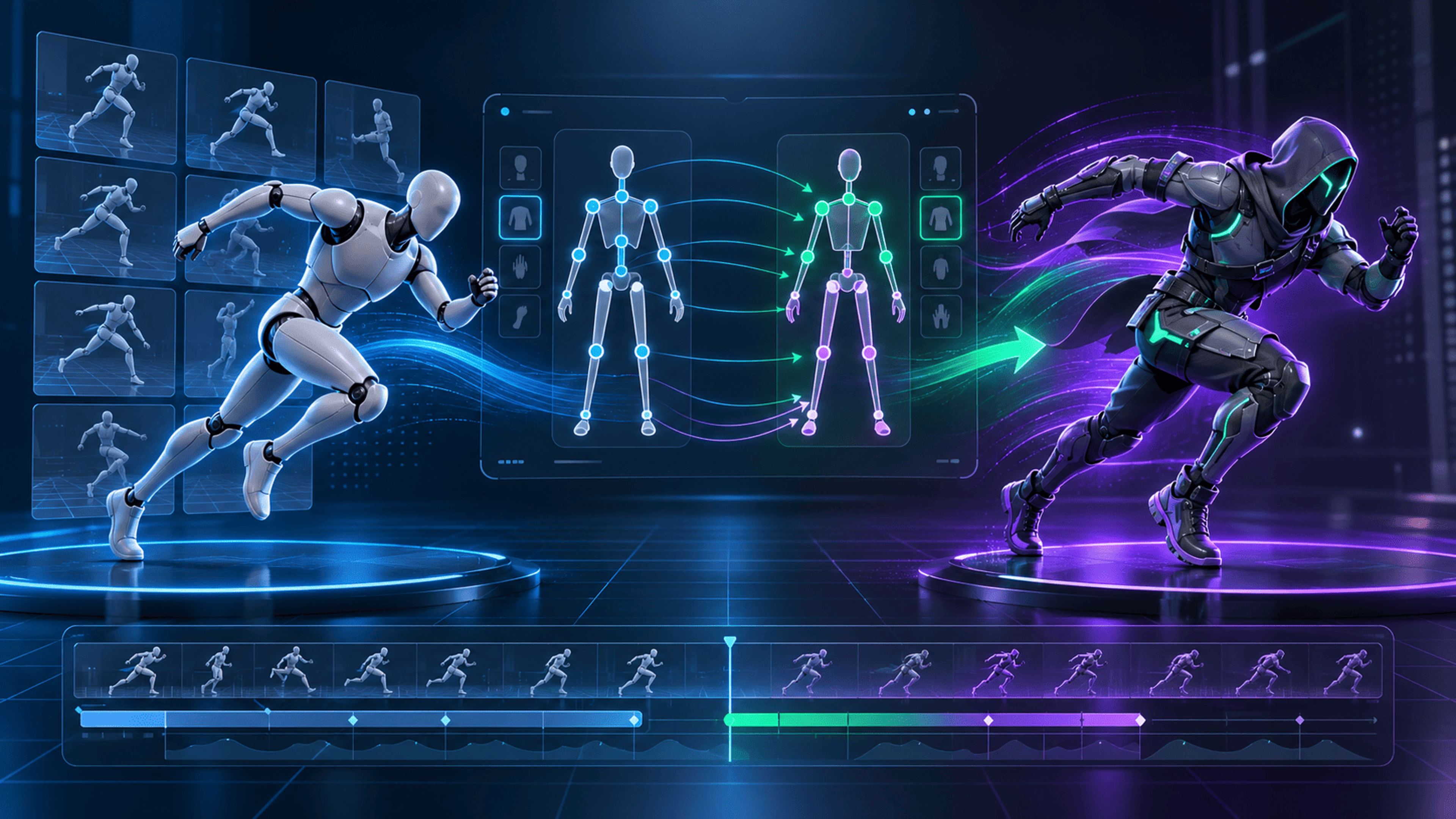
Animation retargeting is the process of transferring motion from one character's skeleton to another. Instead of animating a new walk, idle, or attack from scratch, you map the source character's joints to the destination character's rig and adapt the movement. It is useful for reusing animation libraries, but compatible-looking skeletons do not guarantee a clean result.
This article explains what actually transfers, which problems to expect, and how to review an output before putting it into a game or web scene.
Animation clips are not the same thing as characters
A character may contain a visible mesh, a skeleton, skin weights that bind mesh vertices to bones, and one or more animation clips. An animation clip usually describes changing joint transforms across time. These are related assets, but they are not interchangeable.
For example, an FBX file might contain motion and a skeleton without the character mesh you want to use. A GLB character may have a fully skinned rig but no walking animation. Retargeting connects these two resources when the mapping and deformation are workable.
If you only attach a source clip to an unrelated set of joint names, the result may not move correctly or may not move at all. Successful import is not successful retargeting.
How retargeting works
1. Read the source motion
The system identifies the source skeleton, the animation's duration, the animated tracks, and the relevant joint chains. A walk might animate the hips, legs, feet, spine, and arms. Its movement can also include root translation, depending on how the clip was authored.
2. Identify the target rig
The target character needs a usable skeleton and skinning. It is not enough for bones to be visible in a hierarchy: the character mesh must be bound correctly if you want it to deform when the bones move.
If the model is unrigged, a separate rigging step may be needed. Rig generation is not inherently part of retargeting, and automatically created rigs require their own quality review.
3. Map corresponding joints
A mapping relates anatomical roles rather than assuming source and target bone names are identical. A source LeftUpperArm can correspond to a differently named upper-arm joint in the target. Bone count can differ; what matters is the required semantic structure and the source motion's needs.
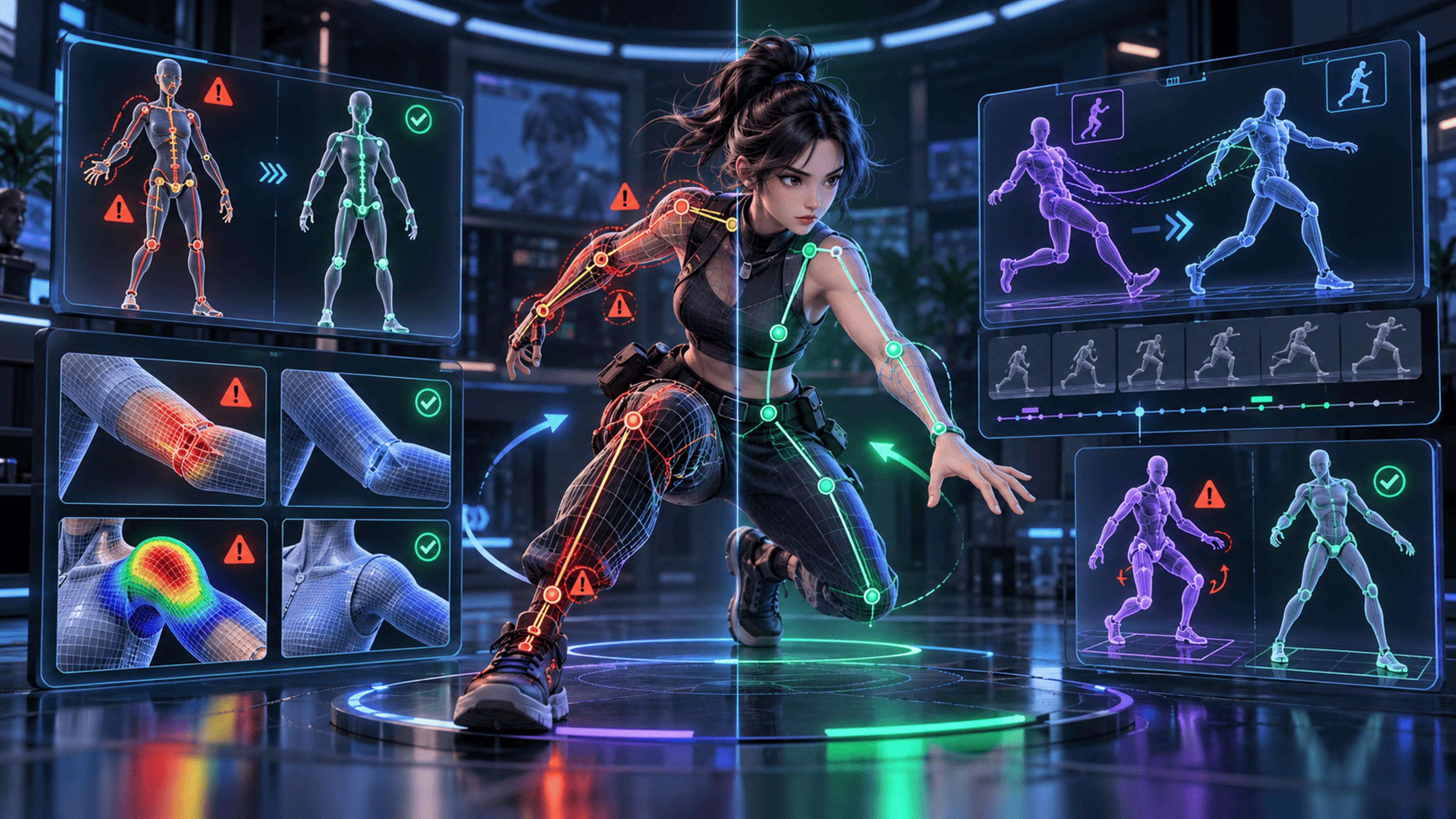
Mapping mistakes can swap left and right, bend elbows in the wrong direction, or move a leg from the hip incorrectly. A mapping report helps explain where the tool has enough evidence and where a person needs to review it.
4. Adapt and validate the motion
Different skeleton sizes, orientations, rest poses, and joint axes require adaptation. A tall humanoid and a short stylized character may share a walk concept but have different stride lengths and arm proportions.
Preview is essential. Check more than the first frame: compare a neutral pose, the midpoint of the motion, both foot contacts, and the ending pose. Distortion, hand penetration, leg crossing, unnatural rotations, and foot sliding can appear only at specific moments.
What retargeting does not automatically solve
- Bad skin weights. Correctly animated bones can still stretch a poorly skinned mesh.
- Different anatomy. Human motion rarely transfers directly to a spider or bird without a purpose-built mapping and substantial animation work.
- Root-motion mismatch. An in-place walk and a moving-root walk may need different handling in a game engine.
- Contact and props. An animation that appears to hold a sword does not automatically add, align, or attach a sword model.
- Licensing. Technical compatibility does not grant permission to reuse or redistribute third-party motion assets.
A preview that looks plausible also is not a promise that the clip will behave identically in Unreal Engine, Unity, Blender, or every other destination. Re-import and test the final export in the software where it will be used.
How to evaluate a retargeted animation
Use a short motion such as an idle or a two-step walk for the first attempt. Confirm that the target rig is recognized, that the mapping covers the joints the motion needs, and that the output follows the intended direction and timing. Scrub through the whole clip; inspect feet, knees, hips, shoulders, hands, and the mesh silhouette.
Only accept and export a result after any available validation gates pass. Keep the original animation source and character asset so you can revise the process without losing them.
Retargeting in 3DLabTools
The 3DLabTools Animation Tool brings source animations, a target character, rig inspection, retarget review, and export into one browser workspace. Its current viewport labels are Character, Animation and Retarget, with separate rig, mapping and validation inspection. Pack processing reuses the target setup while retaining per-clip review. The exact controls available depend on the imported assets and whether validation succeeds.
For packaging and import differences, read GLB vs glTF vs FBX. To inspect a character export before transferring motion, use the browser model viewing guide.
Next step: Open Animation Tool with one known-good character and one short, licensed animation clip. Verify the rig first, then review the transfer across the entire timeline.
A practical V1 checkpoint
Use a published animation pack or an animation-source Resource, plus a separately imported character. The local Library Upload action is for an exported retargeted animation GLB, not an arbitrary source FBX. In the pack workflow, Generate Retarget creates candidates and Apply Selected applies eligible results. REVIEW requires explicit confirmation; FAIL cannot be applied or included in the accepted character GLB. A result can pass numeric checks while still needing visual deformation review.
For an illustrative comparison, two characters can have different bone names yet share usable hip, leg and arm roles. That makes a mapping possible; it does not establish matching stride length, rest pose or foot contact. Compare those properties during playback before accepting the transferred motion. This example describes a review decision, not an observed result for a particular character pair.
Verification note: reviewed against V1 import, validation and export behavior on October 20, 2026. Re-import every accepted export in its destination environment.
Explore product documentation or open the Animation Tool.