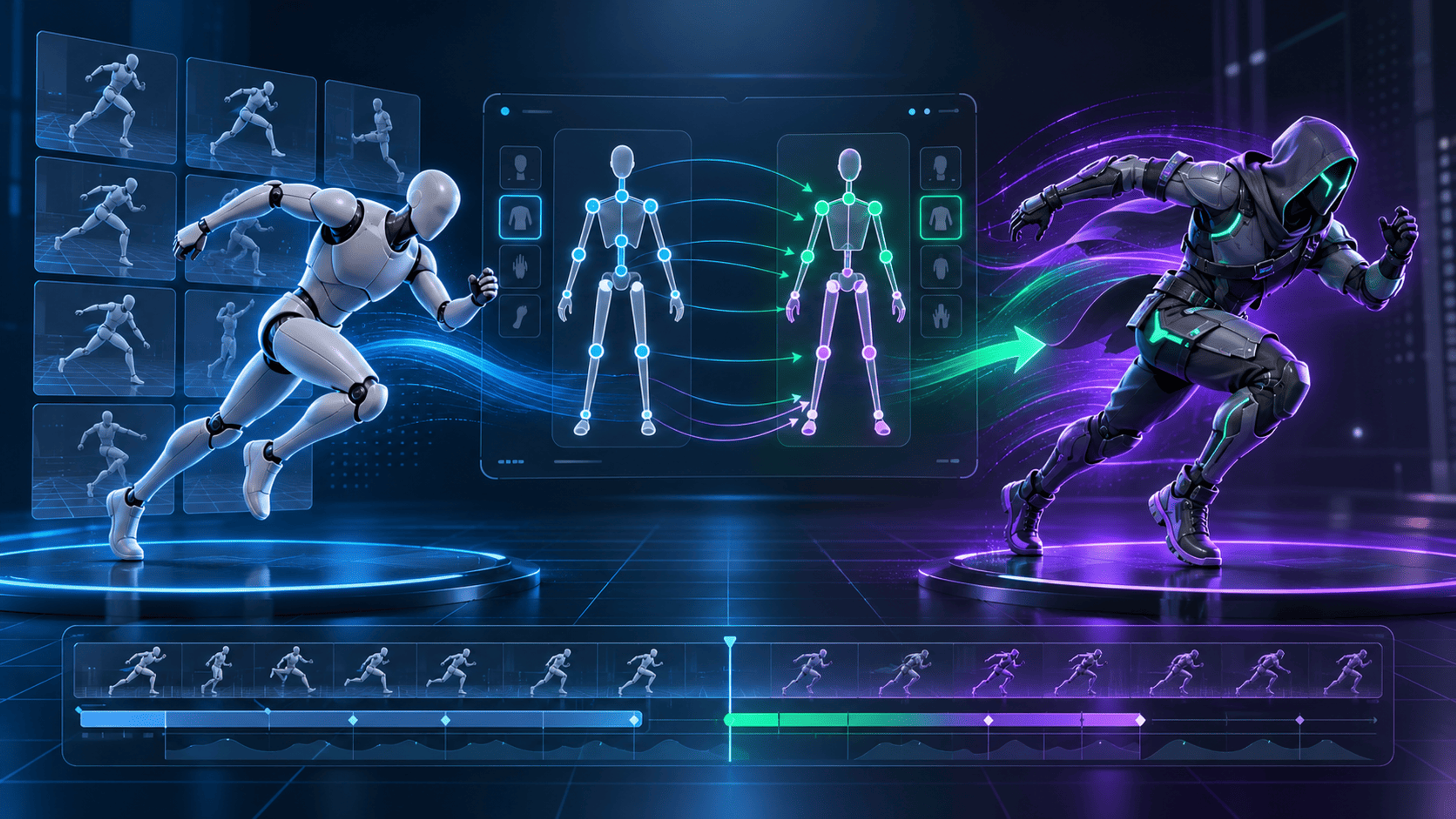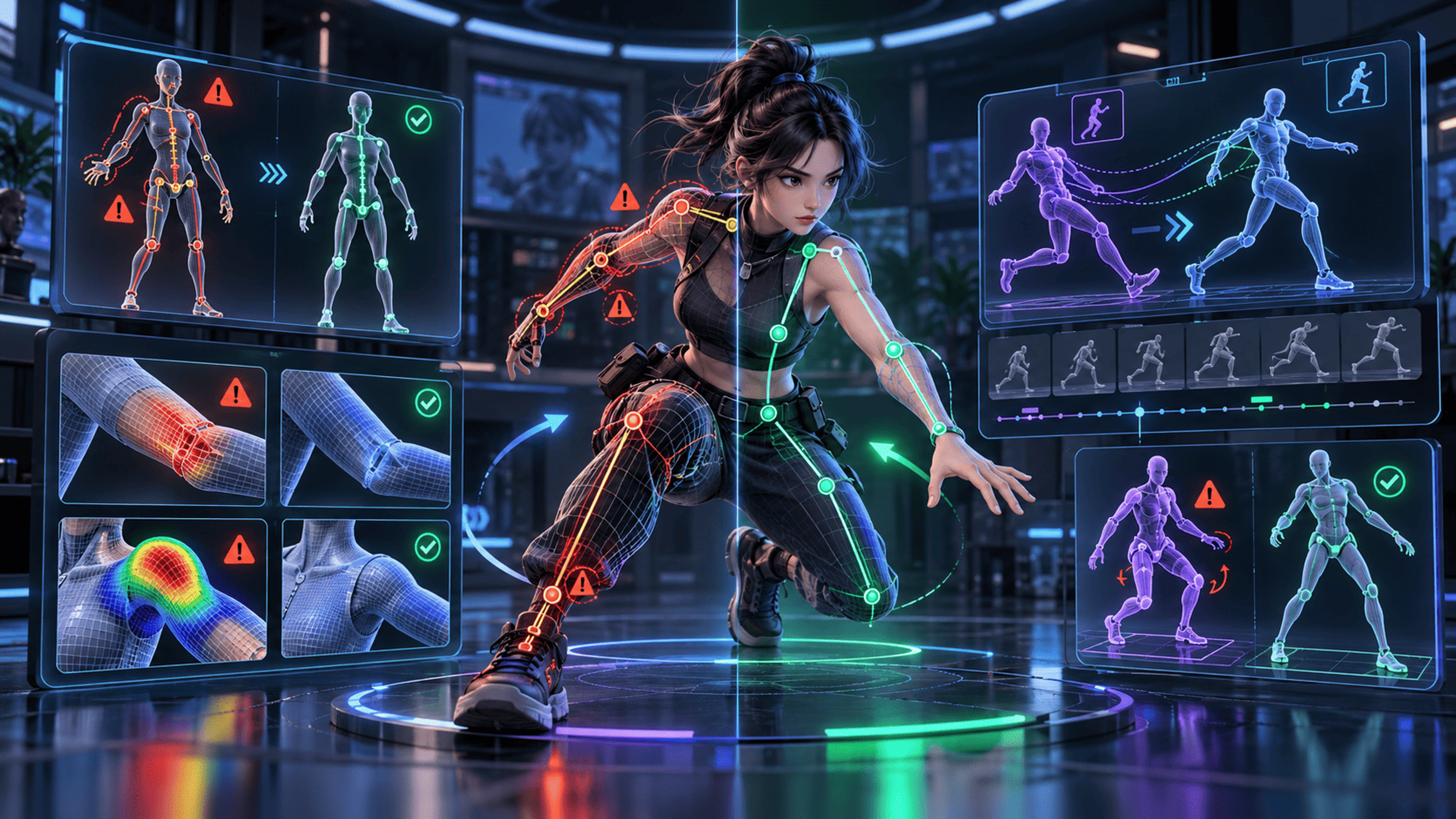
You imported a character and animation, but the character stands still—or moves with twisted arms, sliding feet, or stretched geometry. There is no single fix for all of these symptoms. The quickest path is to separate file import, animation data, skeleton mapping, skin binding, and motion behavior into distinct checks.
Below is a diagnostic sequence you can use in a browser-based 3D workflow before reopening Blender or another authoring tool.
First identify what is actually moving
When playback starts, watch the skeleton and mesh separately if your inspection tool provides those views. Four cases mean different things:
- Neither skeleton nor mesh moves: the intended animation clip may be missing, unselected or not playing.
- Skeleton moves but mesh stays static: examine the mesh's skin binding and whether the animated skeleton drives it.
- Mesh moves but limbs distort: suspect incorrect weights, rest pose, joint axes or semantic mapping.
- The body animates convincingly but travels incorrectly: inspect root motion, coordinate orientation and in-place movement assumptions.
Do not immediately run retargeting again on every failure. If the source file contains no actual animation tracks, regeneration cannot create that missing motion.
Problem 1: The source clip has no usable animation
An FBX or GLB container can load successfully without containing the animation you expected. Check the imported clip list, duration and animated track evidence. An asset named Run.fbx is not proof that Run was exported with the correct frame range.
If the file looks empty, open the original scene in the authoring application and check the export selection and baked animation settings. Then re-export and inspect again. Read GLB vs glTF vs FBX for format-level tradeoffs; no format can compensate for missing data.
Problem 2: Bones exist, but the mesh is not bound to them
A hierarchy full of bones does not make a character fully rigged. For skeletal deformation, the mesh normally needs skin indices, skin weights and appropriate bind transforms or equivalent data in the target format.
Inspect the model's skinned-mesh status. If the character lacks a usable skin binding, fix or generate an appropriate rig and validate its deformation before attaching a transferred clip. A clean retarget mapping cannot make an unskinned mesh follow the skeleton.
Problem 3: The wrong joints are mapped
Animation names and skeleton names are often inconsistent between sources. A mapping system may use roles such as hips, left upper leg and right forearm, but it still needs to resolve them correctly. The wrong correspondence can make knees point backward, invert sides or twist the torso.
Check a neutral pose and a few characteristic keyframes. Test left and right independently, and do not assume a mapping is valid merely because its confidence is high or all available fields are filled. The visible result is part of validation.
Problem 4: Different rest poses and coordinate conventions
An A-pose rig, a T-pose rig and a character exported with different orientation axes may need adjustment even if they use the same number of bones. Bone-local rotations depend on their parent hierarchy and bind orientation; copying numeric rotations from one skeleton to another can yield physically different poses.
Start with a simple idle and walk. If those fail, inspect rest pose, direction and skeleton hierarchy before attempting extreme animations. Preserve the untouched source so you can make a controlled comparison.
Problem 5: Skin weights break at extreme poses
A model can look fine standing still and then collapse around shoulders or hips during a crouch or raised-arm pose. That may be a skinning problem rather than a motion-timing problem. Examine the same limb across several frames and look for pinched joints, sharp stretching and triangles pulled across the body.
Poor weights often need correction in the modeling or rigging application. Changing the animation clip alone may hide the issue in one pose without fixing the underlying deformation.
Problem 6: Root motion or contacts are misunderstood
A motion authored in place moves limbs while leaving the overall character near the origin. A root-motion clip can translate the character through the scene. When these conventions are confused, a perfectly reasonable walk may slide, move twice or drift away.
For walk cycles, compare the feet at contact points and determine which component—animation or your game controller—should move the world-space character. For actions involving held objects, remember that animation data does not automatically attach a sword, shield or other prop.
A practical troubleshooting order
- Confirm the exported file and selected clip really contain the expected data.
- Confirm the target mesh has a usable skeleton and skin binding.
- Inspect the source-to-target mapping and rest pose.
- Preview the full clip, including extreme poses and contacts.
- Respect validation failures; make one change at a time.
- Re-import the final export in its actual destination environment.
The 3DLabTools Animation Tool combines character rig inspection with source-motion review and retarget validation. For general geometry, materials and animation checks outside retargeting, use the 3D Viewer workflow.
Next step: Open Animation Tool and diagnose one short clip on one known-good character before debugging a full pack.
A practical V1 checkpoint
If a generated pack preview looks correct but the intended motion is missing from the character export, check the application state before changing the mapping. Generate Retarget creates a candidate; Apply Selected applies eligible results. A REVIEW result still needs explicit confirmation, and a FAIL result cannot apply. Finally, check that the intended applied clip remains selected for export. A source preview, a generated candidate and an included character animation are different checkpoints.
As an illustrative diagnostic case, if the source skeleton moves while the target mesh remains still, inspect skin binding and whether the generated motion has actually been applied. If the mesh moves but an elbow collapses only at the extreme pose, inspect weights, rest pose and mapping instead. Those two symptoms call for different checks; neither proves a missing file-format conversion.
Verification note: reviewed against V1 import, validation and export behavior on October 20, 2026. Re-import every accepted export in its destination environment.
Explore product documentation or open the Animation Tool.