
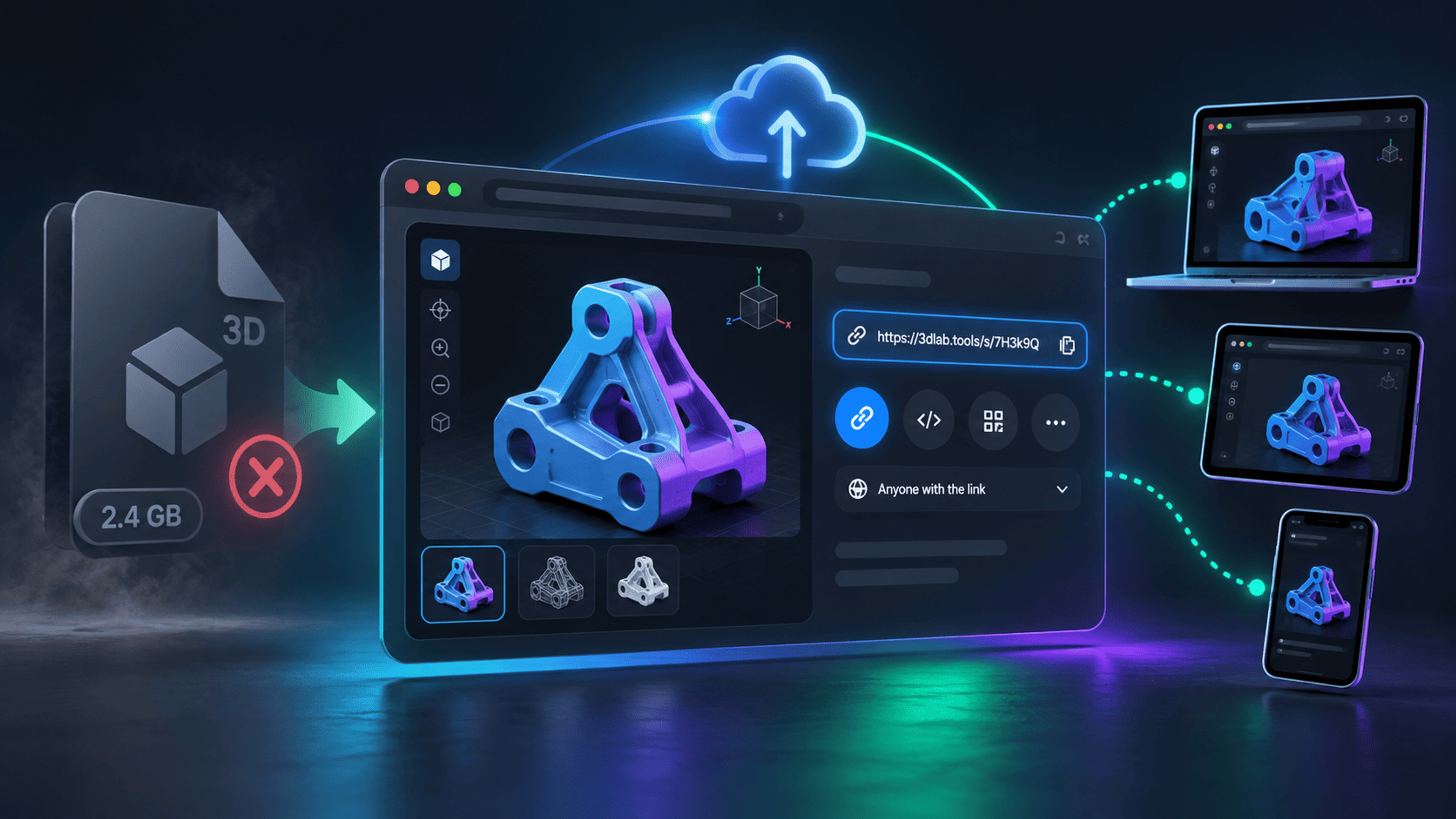
A hosted model link gives collaborators one place to inspect a 3D asset instead of exchanging attachments and installation instructions. The first upload still transfers the model, and each visitor still loads it in their browser. The advantage is a consistent viewing and sharing workflow, not the disappearance of large-file costs.
In 3DLabTools V1, you can save a model, make it public, copy a Share View link, or place an iframe embed on a website.
Prepare a model for review
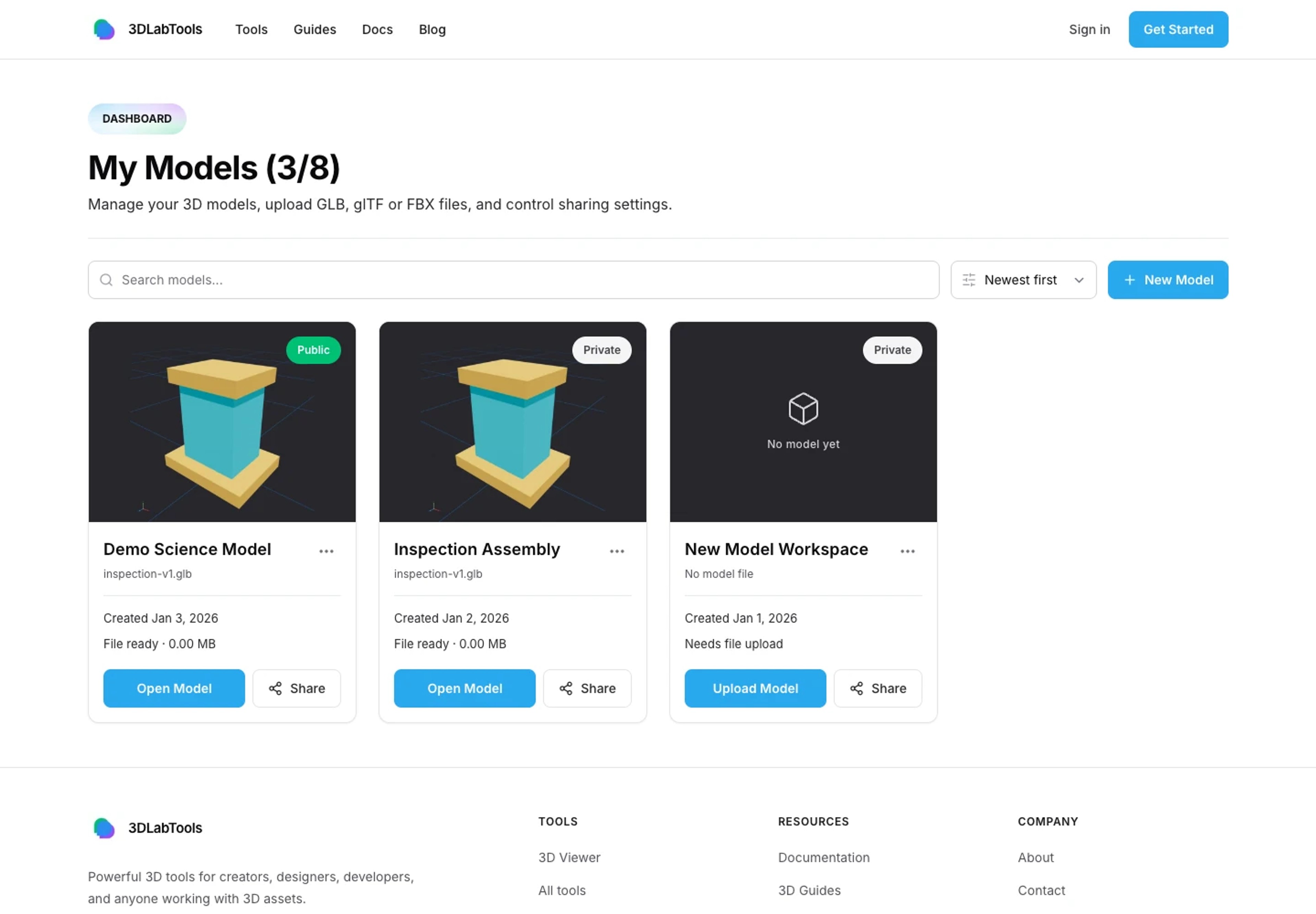
Use an export that contains the required geometry, materials, textures, and supported animations. Check it in the 3D Viewer before publishing it for someone else.
Saved models use canonical GLB storage, including prepared glTF and FBX inputs. Each account can save 8 models, with a maximum of 100 MB per model. Keep the editable source project separately, and avoid using a review upload as your only backup.
If the asset is unnecessarily large, review the web optimization checklist before sharing it.
Share View gives a reviewer context
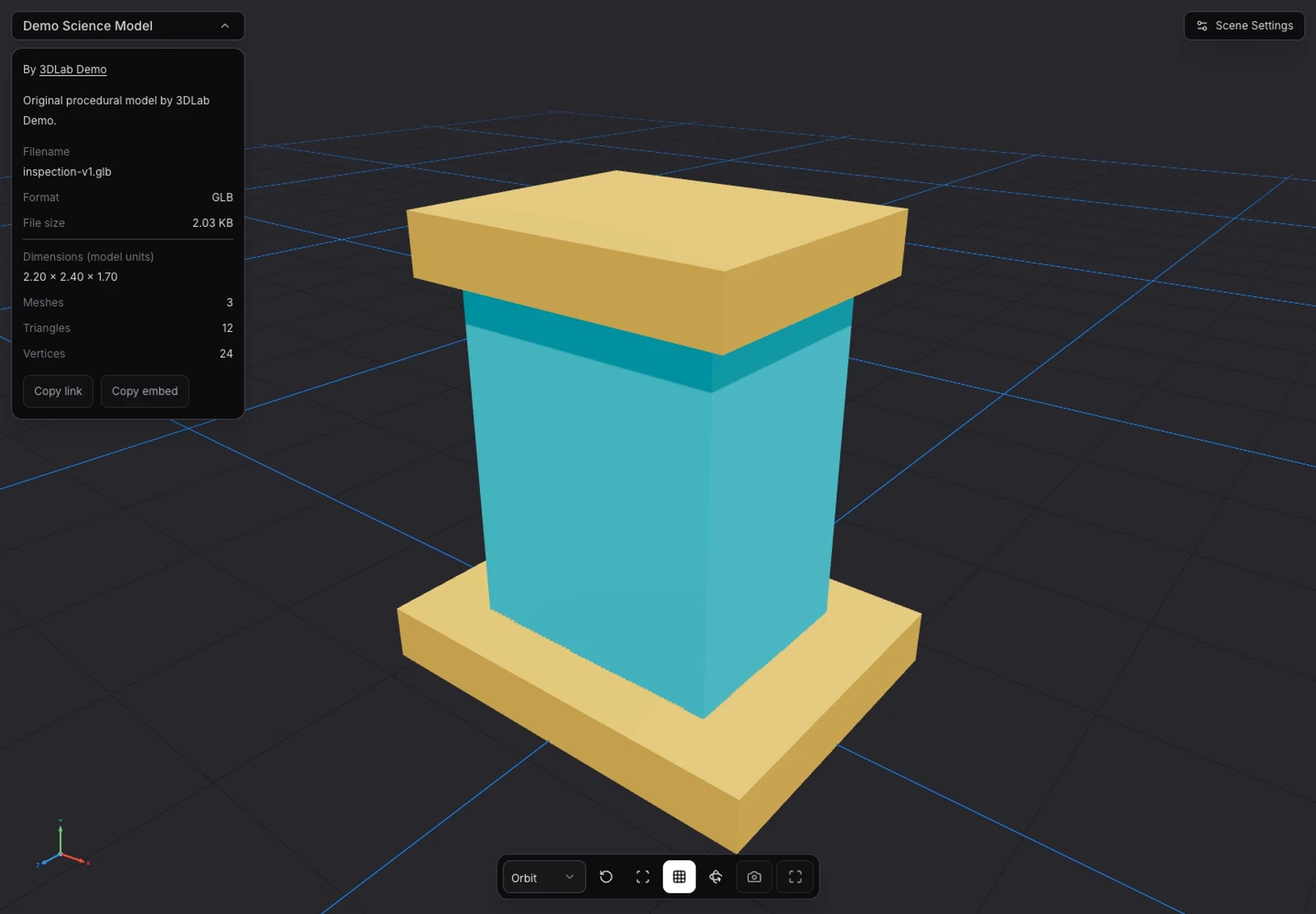
A public Share View combines the viewport with model information and creator attribution. Reviewers can inspect the model using the available camera, navigation, and presentation controls without receiving editor-only actions.
Fit Model helps recover the frame. Read-only annotation hotspots can identify a part or explain a design decision. First Person or Third Person navigation can help explore suitable environments, subject to geometry, collision preparation, and device safeguards.
For example, share a room model with annotations marking a doorway and fixture clearance. Ask the reviewer to inspect those points from Orbit, then walk along the floor where the geometry permits it. Navigation is an inspection aid rather than a guarantee of accurate building or game simulation.
Use an iframe when the model belongs inside a page
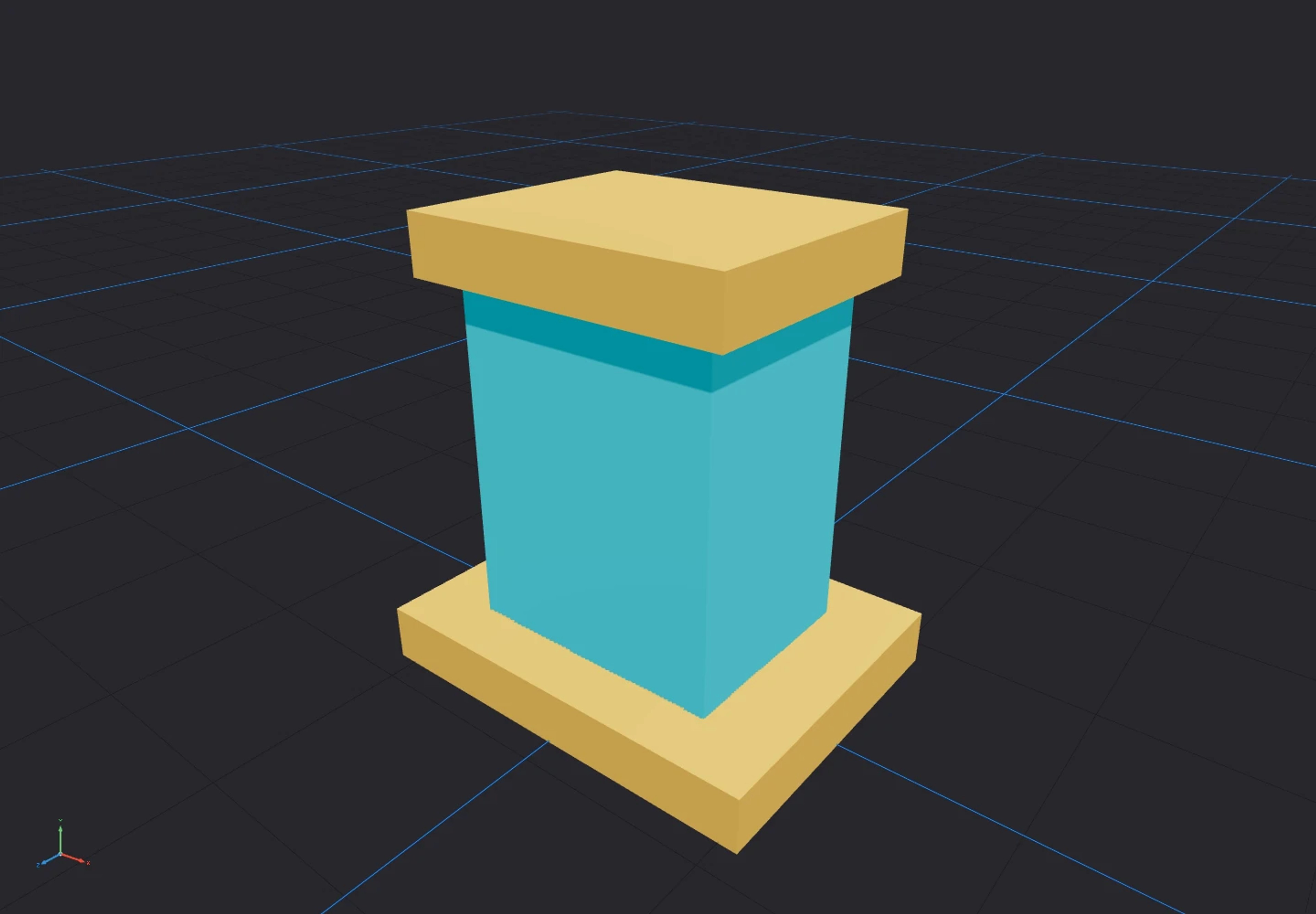
Copy embed gives you iframe markup for the saved public model. Place it in a website or content system that allows iframes, then test the page at desktop and mobile widths.
Share View is the full public review page with model context and copy actions. Embed is the viewport-focused presentation inside the host page. Check each separately rather than assuming the surrounding Share View layout appears inside the iframe.
Give the iframe a useful title and reserve a visible height in your page layout. A tiny or collapsed embed is difficult to use even when the model loads correctly. Follow How to Share and Embed a 3D Model on a Website for the full workflow.
Annotations make a review more specific
A note attached to the model is more precise than “look at the part on the left.” Use short titles and clear text: which feature matters, what should be checked, and which decision is needed.
Annotations on saved models persist through the existing save flow. Public Share View displays them read-only; visitors can toggle hotspot visibility when annotations exist. See the annotation guide.
The product does not provide comment threads, likes, followers, or collaborative editing. Collect review responses through your existing communication channel and refer to the hotspot or part name.
Public sharing needs deliberate access choices
Use Make Public when the model is intended for public access. Anyone with access to that public URL can view the asset; an obscure link is not an access-control mechanism.
Make Private revokes public access to the saved model's share and embed endpoints. It cannot erase screenshots, previously downloaded data, or a viewport that has already loaded the asset. Share only material you are comfortable making public.
Creator attribution links to the relevant Public Profile when available. Complete your display name, username, bio, and avatar in Profile Settings so reviewers can identify the creator. Private email and authentication information are not part of that public identity.
Use a short review loop
Inspect the export, add a few relevant annotations, make the saved model public, and test the copied link while signed out. Send that link with a specific checklist. After review, decide whether to keep the model public, replace its source, or make it private.
Start with the upload guide, then continue with Share & Embed documentation.
Explore product documentation or open the 3D Viewer.